
How to Use git push --force
Here's one of the great things about Git: a safe state on the remote repository always goes first! The wonderful consequence of this is that conflicts cannot happen on the remote repository (unlike in other version control systems).
One of the reasons for this "safety on the remote" is how the "push" operation is designed in Git: you can only upload your own changes with a push if you have previously pulled in any outstanding changes from others. This way, a healthy state on the remote repository for everyone is always guaranteed.
However, there might come situations where you deliberately want to overwrite the commit history on the remote with your local one. This is when git push --force comes into play.

The Git Cheat Sheet
No need to remember all those commands and parameters: get our popular "Git Cheat Sheet" - for free!
How a "Force Push" Works
As described above, Git will normally only allow you to push your changes if you have previously updated your local branch with the latest commits from its remote counterpart. Only when you are up-to-date will you be able to push your own new commits to the remote.
The --force option for git push allows you to override this rule: the commit history on the remote will be forcefully overwritten with your own local history.
This is a rather dangerous process, because it's very easy to overwrite (and thereby lose) commits from your colleagues. Also, even if no one else has pushed anything to the remote repository in the meantime, your colleagues might still have based their new work on the old commit history. Your "force push" changes this history and means theirs is not in line with the new one anymore.
Safety Rules
Since it is so easy to destroy or at least impede your colleagues' work, here are a few "safety rules" around git push --force:
- Don't use it on shared history. Whenever you have pushed commits to a remote branch that is shared with your team, you should try NOT to use force push. If, on the other hand, you were working on a feature branch that only you yourself are using, then of course feel free to step on the gas and use the
--forceoption. - Consider using
git revertinstead. The basic need for a tool to correct a mistake that you've already pushed, of course, remains. However, consider using a tool that does NOT rewrite commit history, like git revert for example. This provides a much less obtrusive way to undo a mistake. - Use
--force-with-leaseinstead of--force. The push command has another option called--force-with-lease. This helps to make sure that you are at least not overwriting work from others: it will present an error message and refuse to push if the remote was modified since you last fetched.
No Command Line Needed
Using "force push" in Tower
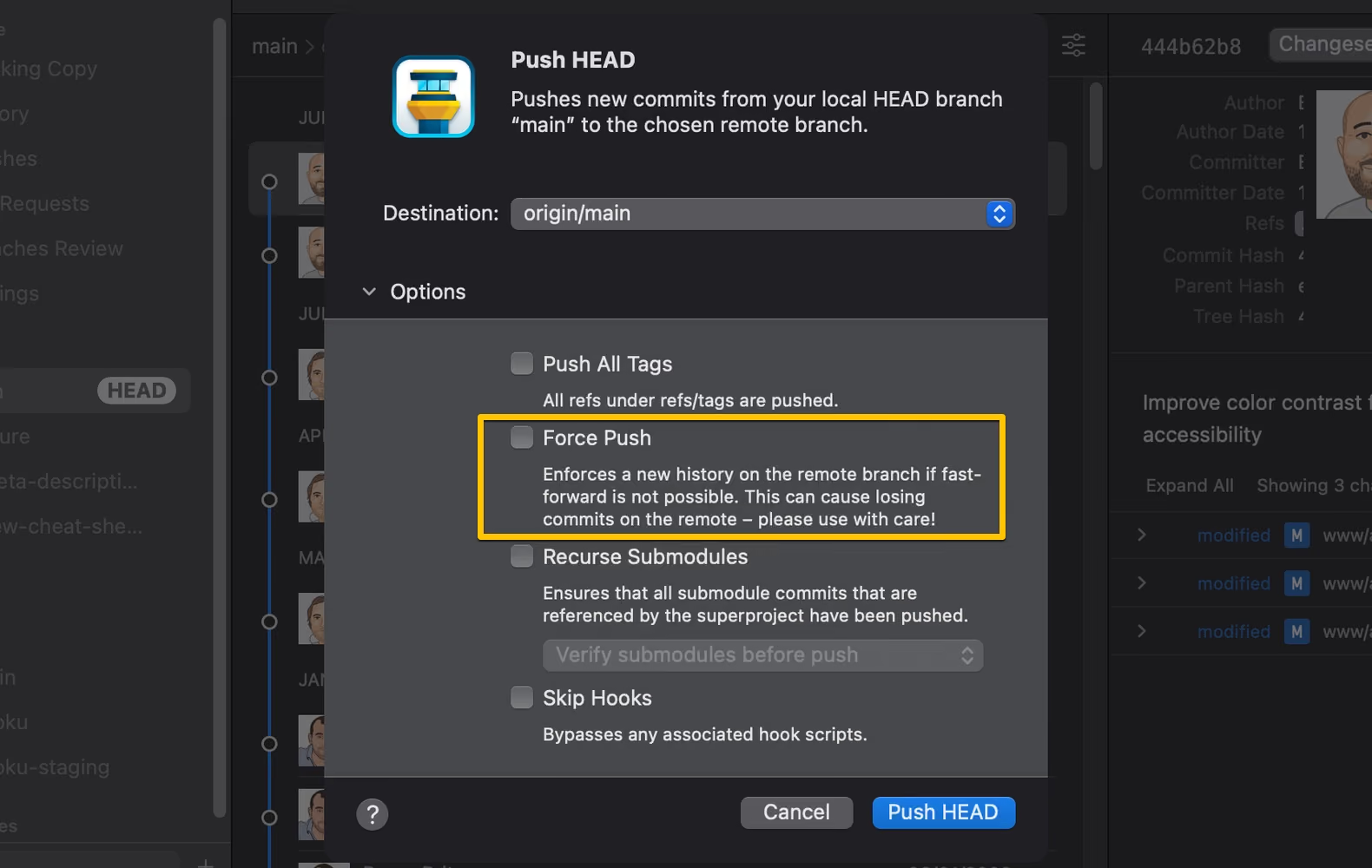
In case you are using the Tower Git client, the "force" flag is available as an option in the Push dialog.
Learn More
- Check out the official documentation on git push
Download the Cheat SheetFree
Get 18 of our most popular Cheat Sheets in one handy ZIP!
Thanks! Please Check Your Inbox!
Want to win one of our awesome Tower shirts?
Tell your friends about the package!