
How to Work on Multiple Branches Simultaneously with Git Worktree
In a hurry? Watch our brief 1-minute vertical video that summarizes the info below.
Run git worktree add ../path/to/new-dir <branch-name> to check out a second branch into its own working directory - fully separate from your current one, but sharing the same underlying repository. No stashing, no temporary commits.
That's the one command you need for the common case: fixing a bug without disturbing the feature you're mid-way through. Below: how to list and remove worktrees, and how Tower turns this into a right-click instead of a terminal command.
Creating a Worktree
To create a new worktree, you can use the git worktree add command. It takes two main arguments: the path for the new working directory and the branch you want to check out.
Let's say you want to create a hotfix. First, you might create a new branch:
$ git checkout -b hotfixNow, you can create a new worktree for this branch. It's a good practice to create the worktree directory outside of your main project folder to avoid confusion.
$ git worktree add ../hotfix-worktree hotfixThis command creates a new directory named hotfix-worktree one level up from your current project. Inside this directory, you'll find your project files with the hotfix branch checked out, ready for you to work on.

The Git Cheat Sheet
No need to remember all those commands and parameters: get our popular "Git Cheat Sheet" - for free!
Managing Your Worktrees
You can see a list of all your worktrees at any time with the git worktree list command. This will show you the path to each worktree and the branch that is checked out.
$ git worktree listOnce you are done with your work in the worktree (e.g., you've committed your hotfix), you can remove it. You don't delete the directory yourself; instead, you use the git worktree remove command:
$ git worktree remove ../hotfix-worktreeNo Command Line Needed
Worktrees in Tower
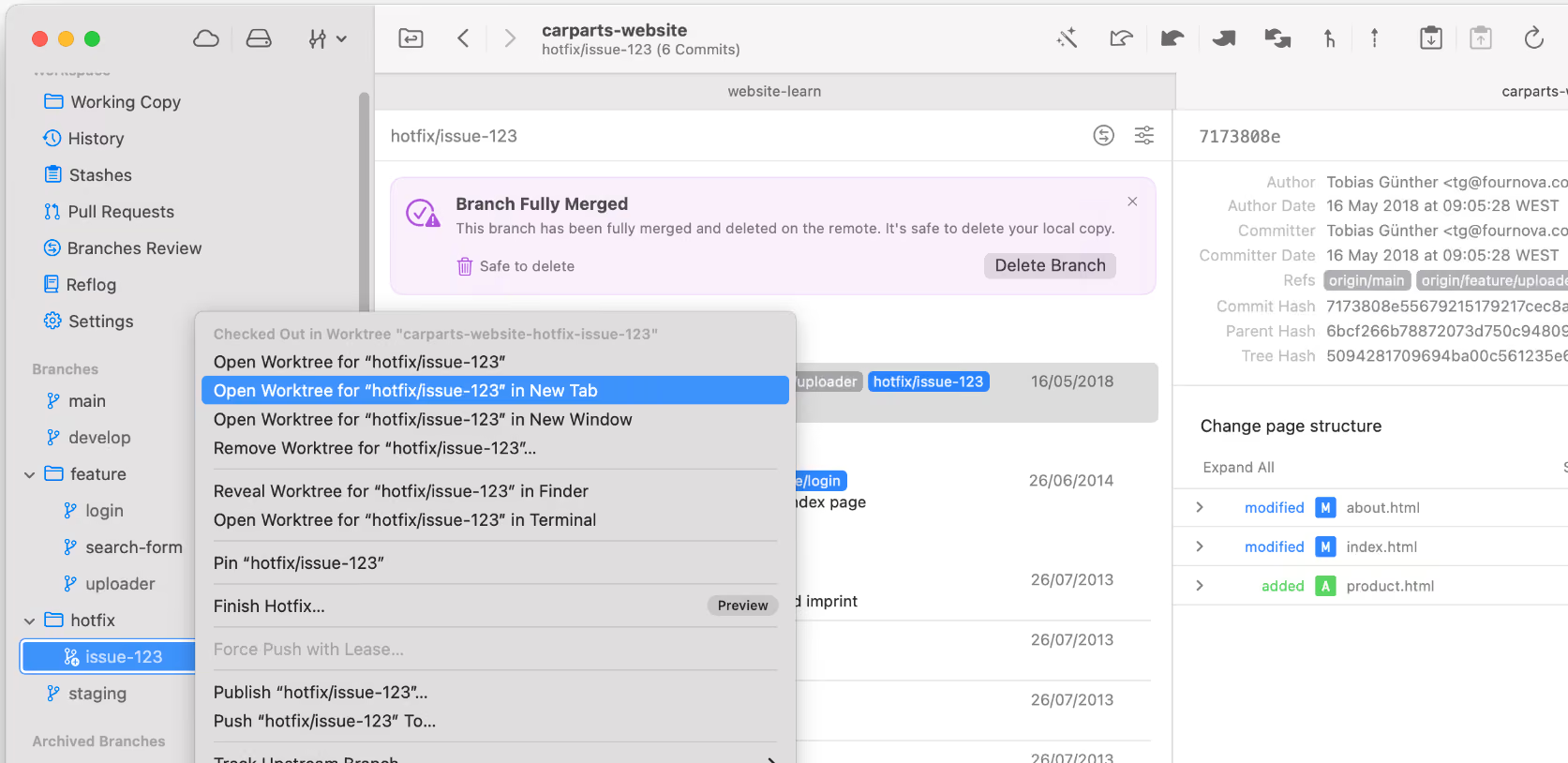
The Tower Git client makes using worktrees incredibly simple. You can right-click any branch in the sidebar and select "Create Worktree". Active worktrees are clearly marked with a special icon, making it easy to see which branches are checked out in a separate working directory.
Learn More
- The official Git documentation for
git-worktreeprovides a comprehensive overview of all its capabilities.
Download the Cheat SheetFree
Get 18 of our most popular Cheat Sheets in one handy ZIP!

Thanks! Please Check Your Inbox!
Want to win one of our awesome Tower shirts?
Tell your friends about the package!