How to Push Code to GitHub (or any other Remote)
Run git push from your local repository - or git push -u origin <branch-name> the first time - to upload your commits to GitHub. Below is the full step-by-step setup, plus the point where you can swap the command line for a couple of clicks in Tower instead.
The Git Cheat Sheet
No need to remember all those commands and parameters: get our popular "Git Cheat Sheet" - for free!
Step 1 — Create a Local Repository
If you already have a local Git repository, skip to Step 2.
Open a terminal, change into your project's base directory, and initialize a new repository:
$ cd projects/my-project
$ git init
$ git add .
$ git commit -m "Initial commit"
No Command Line Needed
Creating a Repository in Tower
In case you are using the Tower Git client, the process is very easy: drag your project's base folder into Tower and it will create the Git repository for you. You can then add all files to the Staging Area and make your first commit:
Step 2 — Create a Remote Repository on GitHub
Open GitHub.com in your browser and create a new repository from your Dashboard:
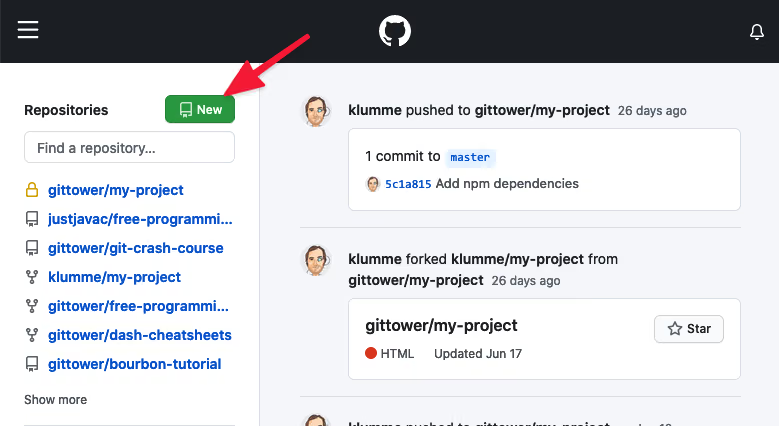
Then, on the repository's main page, click the green "Code" button to copy the remote URL:
Step 3 — Connect and Push
Connect your local repository to the new remote and push:
$ git remote add origin <remote repository URL>
$ git push -u origin master
The -u flag creates an upstream tracking connection so that future pushes and pulls on this branch need no extra arguments — just git push.
No Command Line Needed
Adding a Remote and Pushing in Tower
In case you are using the Tower Git client, right-click the "Remotes" section in the sidebar to add a remote. Once connected, use the "Push" button in the toolbar to upload your changes:
Common Push Options
-u / --set-upstream
Sets up a tracking connection on first push so future git push calls need no arguments:
$ git push -u origin develop--delete
Deletes the specified remote branch:
$ git push origin --delete feature/login--all
Pushes all local branches to the remote at once:
$ git push --all--tags
Pushes all local tags to the remote:
$ git push --tagsNo Command Line Needed
Easy Push in Tower
In case you are using the Tower Git client, pushing to a remote is very easy: simply drag your current HEAD branch in the sidebar and drop it onto the desired remote branch — or click the "Push" button in the toolbar.
Learn More
- Check out the chapter Starting with an Unversioned Project – Desktop GUI edition in our free online book
Download the Cheat SheetFree
Get 18 of our most popular Cheat Sheets in one handy ZIP!

Thanks! Please Check Your Inbox!
Want to win one of our awesome Tower shirts?
Tell your friends about the package!