How to Stage Changes in Git with git add
Before you can create a commit in Git, you need to tell Git exactly which changes to include. This is done with git add, which moves changes into the staging area (also called the index). Only staged changes are included when you run git commit.
The Git Cheat Sheet
No need to remember all those commands and parameters: get our popular "Git Cheat Sheet" - for free!
Staging Specific Files
To stage one or more specific files, pass their paths to git add:
$ git add index.html
$ git add index.html error.html
You can also pass a directory path to stage all changes within it:
$ git add src/Staging All Changes
To stage every change in the project at once — new files, modifications, and deletions:
$ git add --allThe shorthand -A does the same thing:
$ git add -AIf you want to stage only changes to files Git already tracks (skipping new, untracked files):
$ git add -uStaging Individual Lines or Hunks
Sometimes you only want to commit part of your changes in a file. The -p (patch) flag lets you step through each changed section interactively and choose what to stage:
$ git add -pGit will show you each hunk one at a time and ask what to do. The most common responses:
| Key | Action |
|---|---|
y |
Stage this hunk |
n |
Skip this hunk |
s |
Split into smaller hunks |
q |
Quit — stop reviewing hunks |
No Command Line Needed
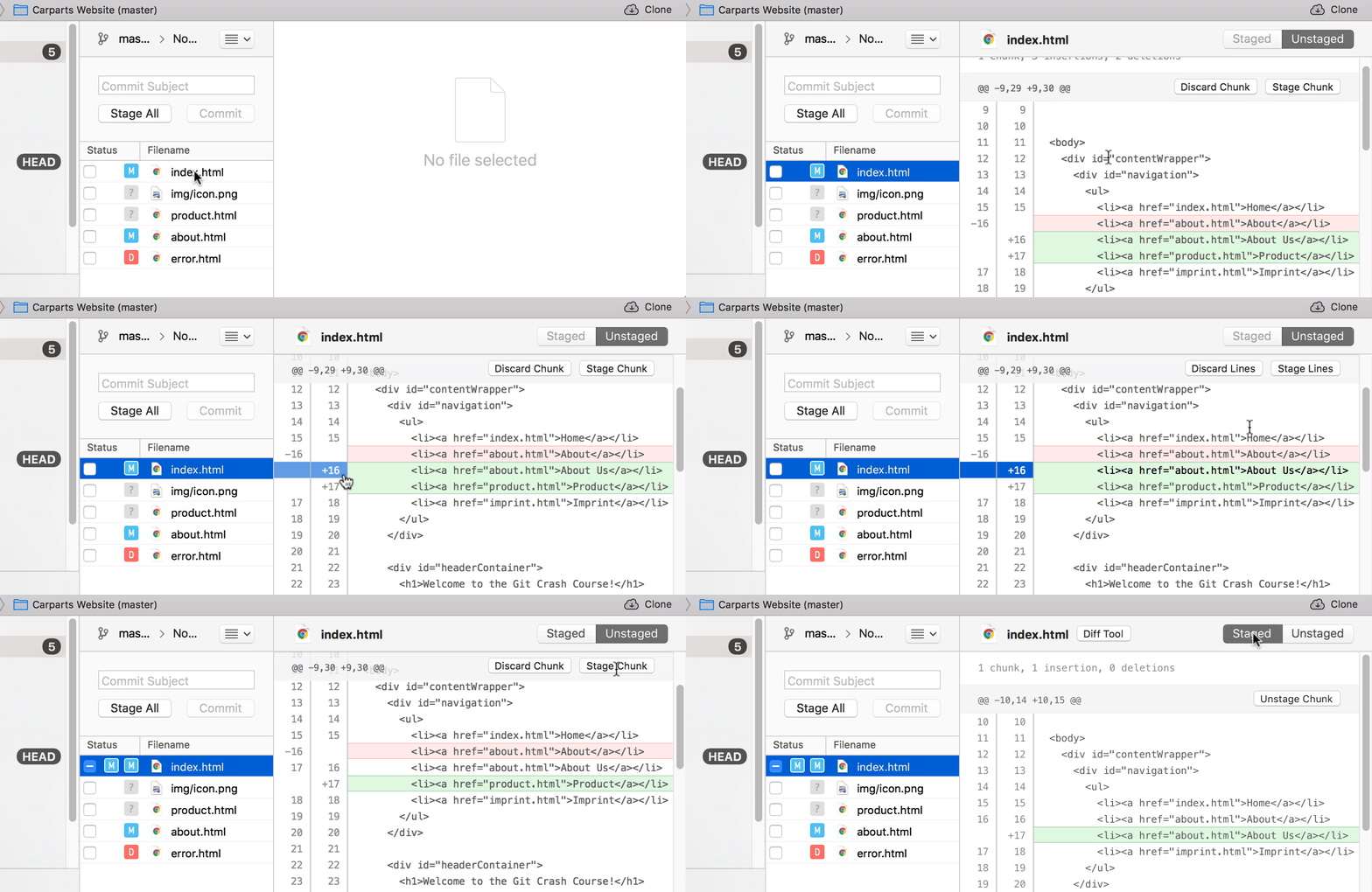
Staging Chunks or Lines in Tower
Using the Tower Git client, you can easily select the exact chunks & lines you want to add to the next commit.
Download the Cheat SheetFree
Get 18 of our most popular Cheat Sheets in one handy ZIP!

Thanks! Please Check Your Inbox!
Want to win one of our awesome Tower shirts?
Tell your friends about the package!